AMERIPRISE FINANCIAL
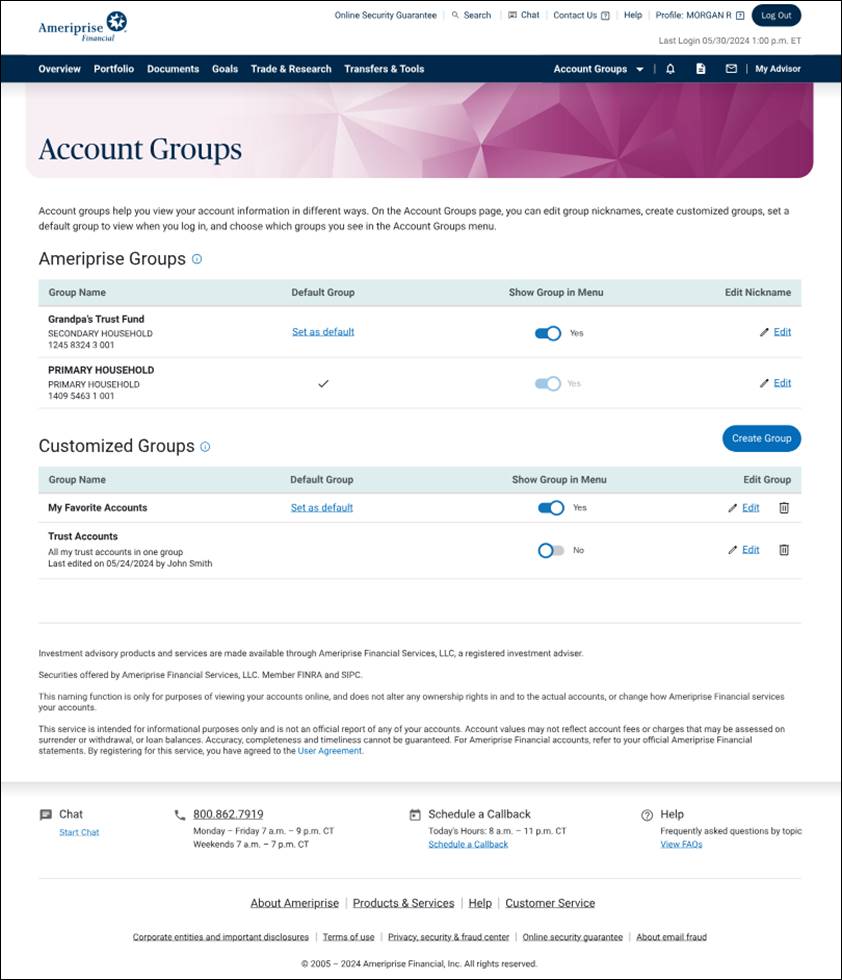
A new account-grouping feature gave clients more control, but it also introduced new complexity. I helped shape the experience so it stayed clear and uncluttered.
The problem
Until recently, clients at Ameriprise couldn’t change the way their accounts were grouped and viewed online. Custom groups added flexibility but created new problems: How to distinguish between the system-created groups and client-created groups, identify the default group, update the navigation, explain what can be edited, and disclose additional details—all without adding clutter?
What I did
I led discovery sessions before any coding started. With the product manager and design partners, I clarified requirements, drafted interface options, reviewed with business partners, and iterated over and over again.
The result
The updated experience fit everyone’s requirements, including business, product, content, design, and compliance. It looked simple and integrated seamlessly with the existing experience because every single element was carefully considered. Below are a few screenshots with details.
Initial state
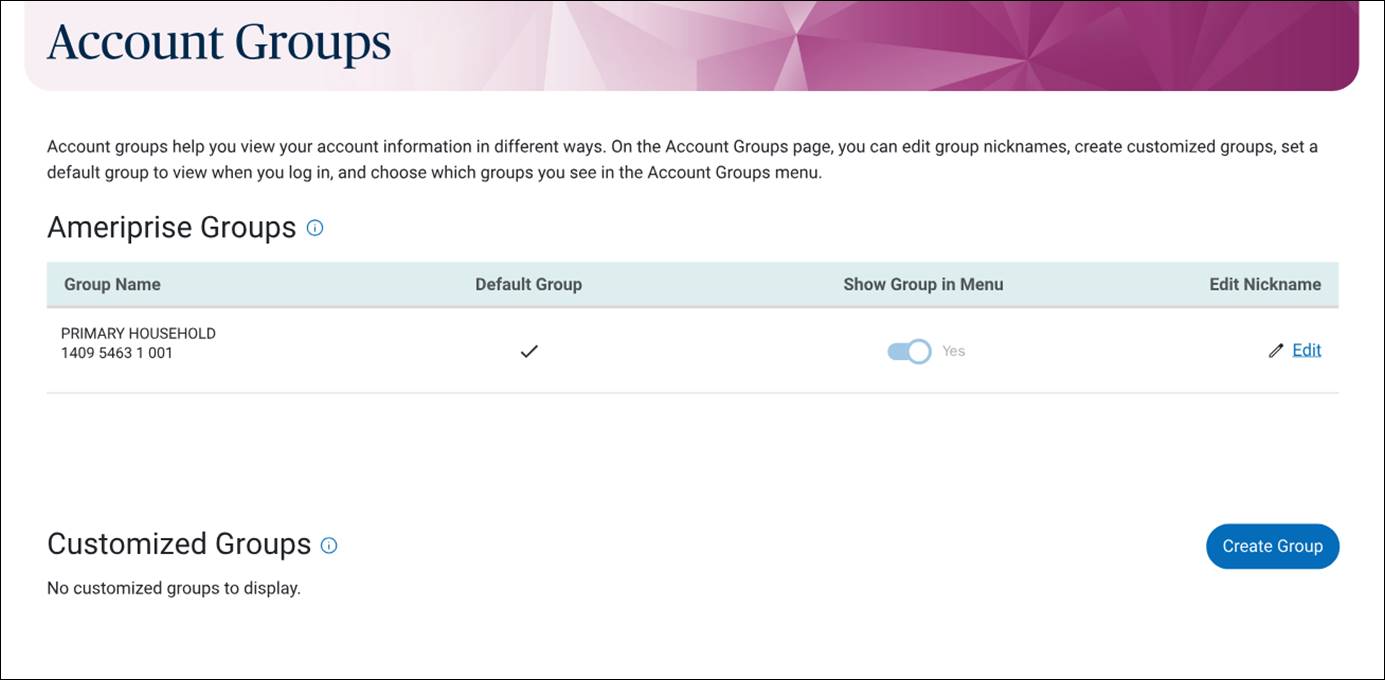
The initial state shows one Ameriprise group and no customized groups. It includes a concise explanation at the top because this is new and most clients aren’t familiar with this page. It also includes microcopy and subtle design cues to guide users at a glance.
Multiple groups
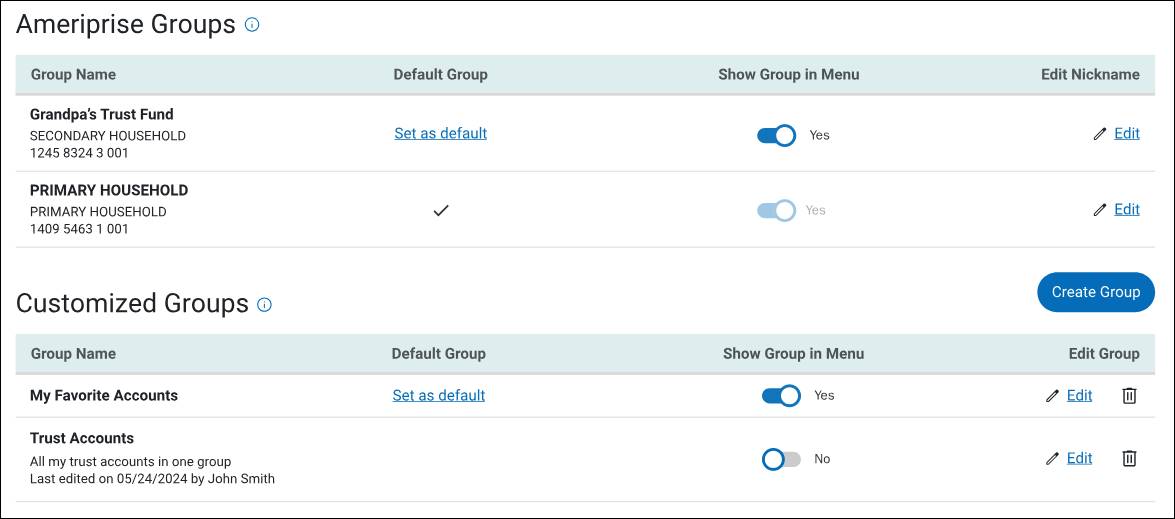
If a client’s portfolio includes multiple account groups (Ameriprise and customized), the layout quickly adds complexity. Our goal was to maximize clarity while minimizing clutter, again using simple microcopy and familiar design cues.
Info bubbles
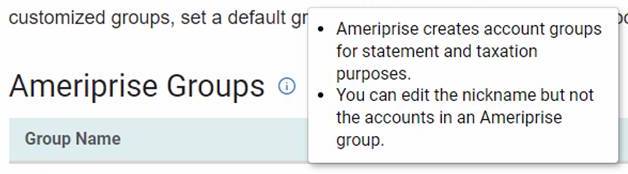
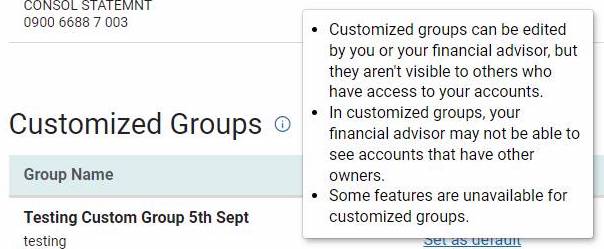
Our business partners wanted to include a lot of extra information for both types of account groups, which added a lot of visual clutter. We rewrote it, cut the word count, added simple bullet points, and “hid” it behind the two info bubbles. The required information was still there, but the clutter was removed.
Customize group details
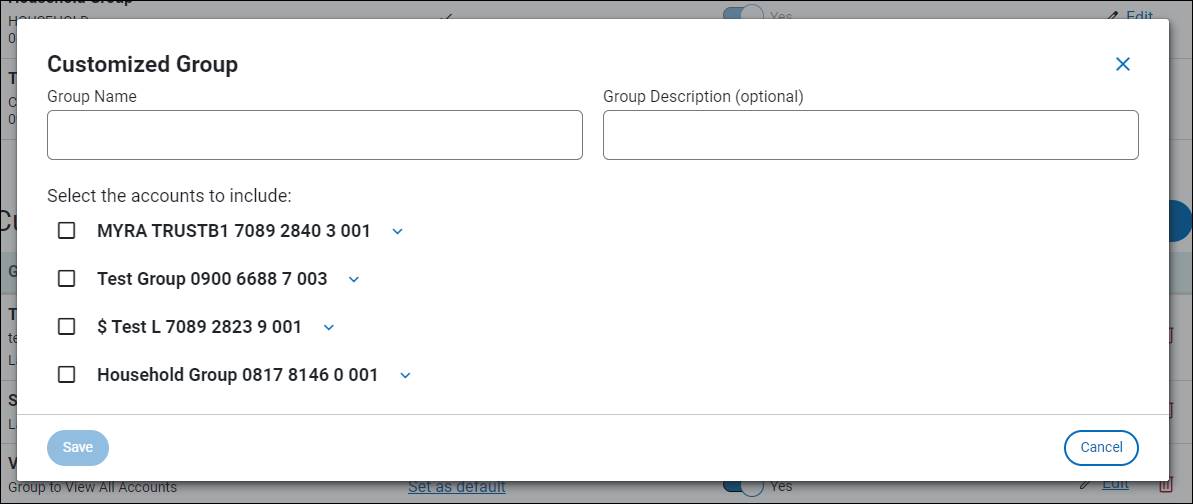
A client can name a customized group, give it an optional description, and select which accounts to include in the group. Every single element on this simple screen was discussed and carefully considered:
- The name “customized group” itself
- The field labels that are above the fields (not inside the fields)
- The “optional” marker in the field label
- The subheader content, style, and punctuation
- The design of the drop-down menus, including text formatting, checkbox style, caret, etc.
- The placement, style, and microcopy for the three buttons
It looks simple and easy to use because a lot of thought went into it.
Navigation menu
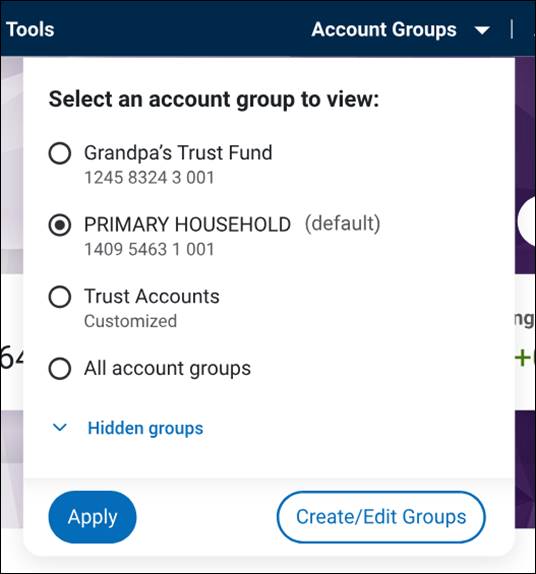
This simple navigation menu is also the result of a lot of thought, discussion, and iteration. Here, too, every single element that you see was considered as it relates to the rest of the website’s navigation and the rest of the Account Groups experience:
- The “Account Groups” label and caret style
- The instructive header inside the menu, including style, format, and punctuation
- The content placement and style of each group type:
- Ameriprise groups include group numbers
- Customized groups are marked as such
- Default group is marked clearly but simply (matching the style we use for “optional” labels)
- The placement, and style for the “all groups” option
- The design and functionality of the “hidden groups” toggle
- The microcopy for the navigation menu label, the “all/hidden” options, and the buttons

